
Shopify speed optimization is the work of making a Shopify store load faster on a phone: removing the apps and scripts the store doesn’t use, fixing how it loads images, fonts and the theme, and checking the mobile score after every change. The score that matters is the mobile Performance score in Google’s PageSpeed Insights, and most of the stores we audit are a long way from it.
We know because we measure it on every sales audit we deliver. Across the 30 sites we audited, the median mobile score was 40 out of 100, and 21 of the 30 scored under 60. That data is what this page is built on.
This page covers how to check a store’s speed the way we do, what slows a store down, what to remove and fix first, what score to aim for, and when the cleanup isn’t enough. It sits under our Shopify CRO guide, which covers the rest of what we change on a Shopify store.
Last updated in October 2026 by Devon Cox, Founder and President, ConversionTeam (16+ years in CRO). Shopify and Google help pages were checked in October 2026.
TL;DR: Shopify speed optimization in one minute
You speed up a Shopify store by removing the apps and scripts it doesn’t use, fixing the images, fonts and theme it does use, and checking the mobile score again after every change.
- Across the 30 sites we audited, the median mobile PageSpeed Insights score was 40 out of 100, and 21 of the 30 scored under 60.
- Test on mobile, on the homepage, a collection page and a product page, and read Google’s real-user data before the lab score when your store has it.
- Aim for 60 on mobile first and 80 after that, and bring in a specialist when the cleanup doesn’t get you there.
Bottom Line: do the cleanup first, check the mobile score after every change, and test everything else.
On this page:
- How fast are the sites we audit on mobile?
- Why does site speed matter for a Shopify store?
- How do you check your Shopify store’s speed?
- What slows a Shopify store down?
- How do you speed up a Shopify store?
- What speed score should a Shopify store aim for?
- How do you optimize a Shopify store for mobile?
- When should you bring in a speed specialist?
- Does site speed affect SEO?
- FAQ
How fast are the sites we audit on mobile?
Across the 30 sites we audited, the median mobile score was 40 out of 100, which is a score Google’s own tool calls poor.
Who is in the data. The 30 sites are the 30 most recent sales mini-audits we delivered with a mobile score on the speed slide, one per company, audited between June 2025 and September 2026. They are ecommerce stores and other businesses that were in a sales conversation with us. We don’t name the companies, and no single site’s score prints here, only the totals.
What the slide measures. Each slide carries the mobile Performance score from Google’s PageSpeed Insights, the lab score from one Lighthouse run on one page of the site on the day of the audit, read on the mobile tab. In Google’s words, Lighthouse analyzes the page “in a simulated environment” and “simulates the page load conditions of a mid-tier device” on a mobile network, so it is a controlled test, not a measurement of real shoppers. Where the slide also shows Google’s real-user Core Web Vitals assessment, we recorded that too, but fewer slides show it than we need to print a figure.
What the slides show. Across the 30 sites we audited, 21 of the 30 scored under 60, and 3 of the 30 reached 80. Those are the goals on the speed slide: 60 on mobile in the short term, 80 in the long term. The table counts the 30 sites we audited by score band.
| Mobile score | Sites |
|---|---|
| under 50 | 18 |
| 50 to 59 | 3 |
| 60 to 79 | 6 |
| 80 and up | 3 |
A few things to keep in mind when you compare your own store to this. The score on the slide is one run on one day, and Google says the lab score changes from run to run: “Several common sources of metric variability are local network availability, client hardware availability, and client resource contention.” Each slide tests one page, and the other pages of the same site can score differently. And the sites in this set are the ones we audited for a sales conversation, not a random sample of stores. A random set might score higher. It might not.
Why does site speed matter for a Shopify store?
Site speed is the one change that always helps conversion rate; everything else we recommend is a hypothesis we test.
That line is the standing line on our mini-audit speed slide. A headline test can win or lose. A product page layout can win or lose. Speed is the item in the deck that doesn’t need a test, so we fix speed alongside testing, not after it, because speed doesn’t need a test to prove it.
Google measures the shopper’s side of this with the Core Web Vitals, which are the metrics its tools and its search systems use. In Google’s words, Largest Contentful Paint “measures loading performance. To provide a good user experience, LCP should occur within 2.5 seconds of when the page first starts loading.” Interaction to Next Paint “measures interactivity. To provide a good user experience, pages should have a INP of 200 milliseconds or less.” Cumulative Layout Shift “measures visual stability. To provide a good user experience, pages should maintain a CLS of 0.1 or less.” Loading, responsiveness and whether the page jumps around while it loads: those are the things a shopper on a phone notices. The full definitions are on Google’s Core Web Vitals page.
You will find statistics elsewhere about what each second of load time costs in conversions. This page doesn’t print them. They were measured on other sites, and the number for your store is the one you measure after you fix it.
How do you check your Shopify store’s speed?
Run Google’s PageSpeed Insights on your store’s homepage, a collection page and a product page, on the mobile tab, and read the real-user section at the top before the score below it.
Go to pagespeed.web.dev, paste a URL, pick Mobile, and you get two different kinds of data on one report, which is the part most people miss. In Google’s words, “PSI provides both lab and field data about a page. Lab data is useful for debugging issues, as it is collected in a controlled environment. However, it may not capture real-world bottlenecks. Field data is useful for capturing true, real-world user experience - but has a more limited set of metrics.” The field data comes from Chrome users who visited your store, and Google only shows it when enough of them have. The lab data is the Lighthouse run that produces the Performance score, “a simulated load of a page on a single device and fixed set of network conditions,” and Google says plainly that “the values may differ” and that “having good lab data does not necessarily mean real-user experiences will also be good.” Both halves are explained in Google’s About PageSpeed Insights.
So the order we read a report in: the real-user assessment first, if your store has one, because that is what your shoppers get. Then the lab score and its metrics, because that is where the diagnosis is. A store can pass the real-user assessment and still score poorly in the lab, and the reverse happens too.
Shopify gives you the real-user side inside the admin. Its web performance reports, in Shopify’s words, “display how your storefront performs across Core Web Vitals: loading speed, interactivity, and visual stability,” and the summary on the Themes page is “based on real user data.” They rate each metric Good, Moderate or Poor, and they “display how any changes you’ve made impact your storefront experience, such as app installs, theme updates, and new code.” That last line is the reason to open them after every change you make, and the reason the check is never a one-time thing: install an app, update the theme or add a script, and look again. Shopify’s web performance reports page covers where they live and how to read them.
What a low score and a high score look like. Two of the audit slides, with the site’s page preview blurred out. The first is a site that scored under 50 on mobile: every metric in red, and a layout shift reading well past Google’s threshold. The second is a site at 80 or above: every metric in green. Same tool, same device, same test; the difference is what each page loads.
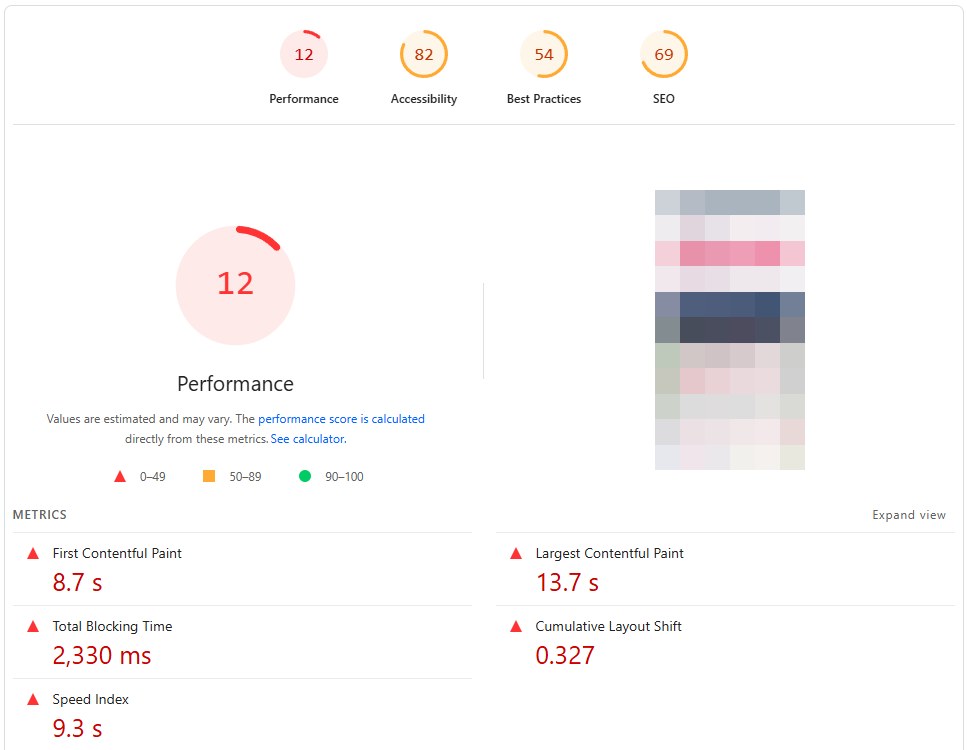
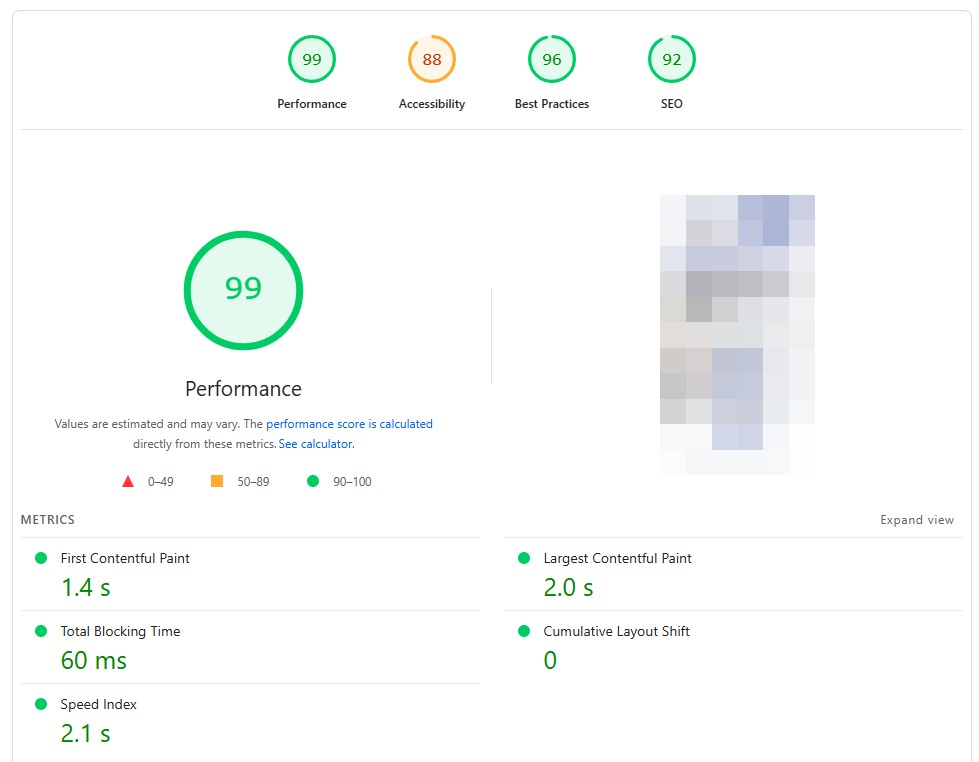
What the report tells you to fix. Under the metrics, PageSpeed Insights lists what it found in two groups it calls Insights and Diagnostics, and lets you filter them by the metric they affect: FCP, LCP, TBT or CLS. When we ran it on our own homepage in October 2026, the list read “Render-blocking requests”, “Reduce unused JavaScript”, “Improve image delivery”, “Image elements do not have explicit width and height” and “3rd parties”, which is what most reports say in one order or another. On a Shopify store those items come down to the same short list of causes. “Render-blocking requests”, “Reduce unused JavaScript” and “3rd parties” are the theme, the apps and the tags, which is Shopify’s own line on slow responsiveness: “too much JavaScript in your store from either theme code, app code, or third party/tag manager code.” Image delivery is what you upload and how the theme loads it. Images without explicit width and height is layout shift, which gets its own paragraph because it is the one you can fix quickly.
Layout shift is the easy one. Google’s list of the most common causes of a poor CLS is short: “Images without dimensions. Ads, embeds, and iframes without dimensions. Dynamically injected content such as ads, embeds, and iframes without dimensions. Web fonts.” Its fix is as short: “Always include width and height size attributes on your images and video elements,” and reserve space for anything that loads late, which on a store means the review widget, the banner and the pop-up. That is a theme edit, and the payoff is large: Lighthouse weights Cumulative Layout Shift at 25% of the performance score, the same as Largest Contentful Paint, with Total Blocking Time at 30%. Layout shift is the easy fix; the loading and responsiveness metrics are not, because they come down to how much the page loads. Google says as much: “Optimizing for LCP can be a more complex task,” and its guide to interaction delay starts with script evaluation, which is JavaScript, which is apps, theme code and tags. Fix the layout shift first and take the points. Then start the longer work on everything the page loads. Google’s guides: optimize CLS, optimize LCP, optimize INP, and the Lighthouse scoring weights.
Then there is which pages to test. We check the mobile score on the homepage, a collection page and a product page, and read the real-user data before the lab score when the store has it. Run each one more than once, because Google says the score changes from run to run, and take the range rather than the best number. And it is not a one-time check. We check the score every quarter, and after every app install, theme update or new script, because speed is ongoing work, not a one-time fix.
Our ecommerce CRO audit checklist includes page-speed data reviewed per template.
What slows a Shopify store down?
The theme, the apps you’ve installed, and the extra code added on top of them, which is Shopify’s own list.
Shopify’s help page on store performance puts it this way: “For Shopify stores, the following are the biggest factors that impact web performance: Your online store theme. The apps you’ve installed. Any additional third-party code you’ve manually added to your store, including tag managers and the tags within them.” Further up the same page it lists the features a store is made of, “such as theme code, apps, images, videos, carousels, social media feeds, and analytics,” and says that “each feature that you add to your online store can impact your store’s performance.” It also names the theme-level causes: page transitions and animations (“Animations can slow down pages”), “too many sections” on a page template, and collections with large numbers of products loading without pagination. And on responsiveness, “if you’re suffering from poor INP, then most likely you have too much JavaScript in your store from either theme code, app code, or third party/tag manager code.” All of it is on Improving your online store performance.
Test and tracking code is part of that third-party code. We run storefront tests through Google Tag Manager, which adds a script to the page. Test and tracking code adds weight to the page, so we keep it small and check speed after a test goes live.
It helps to know what Shopify already handles, so you don’t chase advice meant for other platforms. Shopify says your store “is hosted on fast, global servers,” has “a content delivery network (CDN) run by Cloudflare,” serves images through an image CDN that “can serve the best image format that’s also resized and compressed,” sets browser caching, compresses files with gzip and “automatically minifies CSS and JavaScript files.” Shopify’s own warning about third-party speed scanners follows from that: “many of these recommendations are already implemented by Shopify or don’t apply to Shopify stores.” Hosting, CDN, caching and compression advice is not where your time goes. Apps, images, theme and scripts are.
How do you speed up a Shopify store?
Remove what the store doesn’t use before you touch anything else, then fix images, fonts and the theme, then look at every script that is left.
We remove apps and scripts a store doesn’t use before touching the theme, because that’s the cheapest speed there is. The order below is the order we work in.
Apps and scripts you don’t use. Open the apps list in the admin and go through it one app at a time. Shopify’s advice is the same as ours: “Review your installed apps and remove any that aren’t essential for sales,” and “Evaluate your installed apps and third-party code to ensure that they’re creating enough value to offset any potential performance losses.” Removing an app is not always the end of it. Shopify says “Some apps add code to your online store theme that isn’t automatically removed when you uninstall the app,” and “Uninstalling an app doesn’t automatically remove its code from your theme. You might need to contact the app developer for complete removal instructions.” So after the uninstall, have whoever maintains your theme check for leftover code, and read Shopify’s uninstalling apps page first: uninstalling can stop automations that depend on the app and can lose data the app stored. Rerun PageSpeed Insights after each batch of removals so you can see what each one cost you.
Images. Shopify’s image CDN picks the format and size it delivers, so what you control is what you upload and how the theme loads it. Shopify’s advice is to “resize images to match their display size” and to use “appropriate file formats,” and its product media page says the delivered format is chosen automatically for the shopper’s browser. On loading, Shopify’s theme documentation says images “are typically the Largest Contentful Paint (LCP) element” and gives one rule above the others: “Never lazy-load the LCP image.” Lazy loading belongs on images below the first screen; the hero image and anything else visible when the page opens should load right away. The specifics for a developer are in Shopify’s performance best practices for themes.
Fonts. The same documentation says “Web fonts introduce additional complexity because they’re a render-blocking resource by default and cause visible layout shift when they swap in,” and lists the fixes: adjust the fallback font so the swap doesn’t move the text, self-host web fonts on the Shopify CDN rather than loading them from an outside service, and use system fonts where you can.
The theme. Shopify’s advice is to “Use an up-to-date, optimized theme,” and it says the Horizon themes and the Online Store themes it publishes “are free and optimized for web performance,” with “many other third-party themes” in the same category. If your theme has page transitions or animations, Shopify says to “compare your web performance before and after activating them.” Cut the number of sections on each page template, and turn on pagination for large collections. If the theme itself is the problem, Shopify’s line is to “Consider switching to a performance-optimized theme.”
Third-party scripts and tag managers. Whatever is left after the apps come out is tags: analytics, pixels, chat, heatmaps, test tools. Shopify’s advice is to “Audit your tag manager to remove any unused or low-value tags.” Open the container, list every tag, and ask who still uses each one. Our own test code is on that list, and the same rule applies to it.
When the cleanup isn’t enough. If you do all of this and the mobile score still sits under 60, what is left is the theme’s own code and how it loads images and fonts, or the apps the store can’t do without. That is the point to bring in a specialist.
What speed score should a Shopify store aim for?
We hold stores to a mobile score of 60 as the short-term goal and 80 as the long-term goal.
Those two numbers are on our mini-audit speed slide. Against the audit data on this page they look like this: across the 30 sites we audited, 21 of the 30 scored under 60, so 60 is a real step up for most of them, and 3 of the 30 reached 80, so 80 is the long game. They are our goals, not Google’s labels: Google’s own tool calls a score under 50 poor, and it reserves “good” for the top of its scale, so 60 and 80 both sit in the band it says needs improvement.
The goal is not the top of the scale. Google’s PageSpeed Insights documentation says “having good lab data does not necessarily mean real-user experiences will also be good,” and its search documentation, on the Core Web Vitals reports, says “trying to get a perfect score just for SEO reasons may not be the best use of your time.” The lab score is a diagnostic. The goal is a store that loads well for the people who shop on it, and 60 then 80 on mobile is where that starts.
How do you optimize a Shopify store for mobile?
Measure on mobile, fix for mobile, and check every change on a real phone, because the mobile score is the one that counts.
Every score on this page is a mobile score, and that is not an accident. Shopify’s theme documentation says “Mobile devices account for the majority of Shopify storefront traffic and are subject to the most challenging performance conditions: slower CPUs, constrained memory, and variable network connections. Core Web Vitals scores are measured on mobile by default, so mobile performance is theme performance.” The desktop score on the same report measures a different device; the mobile score is the one the audit slides carry and the one Shopify’s documentation treats as the default.
So, the mobile version of every step on this page. Run PageSpeed Insights on the mobile tab, on the homepage, a collection page and a product page. Read the real-user section first. Then do the cleanup, and check each change where it matters: we check every speed change on a real phone, not only in PageSpeed Insights. Shopify says the same thing in its troubleshooting steps: “Test your store’s loading speed yourself from different devices and internet connections.” Open the store on your own phone, on cellular, not on the office wifi, and tap through to a product and the cart. If it feels slow there, that is what your shoppers get, whatever the score says.
Speed is one part of mobile conversion. The layout, the navigation, the product page and the cart on a phone are the rest, and they are covered in the Shopify CRO guide. The checkout has its own guide, with what each Shopify plan lets you change: Shopify checkout optimization.
When should you bring in a speed specialist?
Bring in a specialist when you have removed what you can and the mobile score still sits under 60, or when the apps you can’t remove are the ones keeping it there.
When the apps and scripts are gone and the mobile score still sits under 60, what is left is the theme’s own code and how it loads images and fonts, which Shopify’s own documentation treats as developer work. Its help page points there too: with a third-party theme, its advice is to “contact your theme developer, hire a Shopify web performance expert, or hire a Shopify Partner for site performance and speed.”
When a Shopify store needs more than cleanup, we work with RenderBetter. In its own words, it “learns the optimal way to load every page from real users,” and it “uses Real User Monitoring (RUM) to track uptime, visual issues, bugs, and performance, optimizing experiences automatically and alerting you of costly problems.” It sits between the store’s servers and the shopper’s browser (the setup is “a few DNS records”) and applies its optimizations “for each new visitor”; its site lists them as “CSS & JS Render Unblocking”, “Image Stabilization”, “Adaptive Image & Font Loading” and “Generated Resource Hints”. Its stated aim is “giving all ecommerce stores an easy way to achieve faster site speed, less bugs, and greater uptime.” Its results are its own to show; what it does for a given store is a conversation with them, and the before-and-after is yours to measure.
Whoever you bring in, the order doesn’t change. Do the app and script cleanup first, so the specialist is working on the store you are going to keep, not on the weight you were going to remove anyway.
Does site speed affect SEO?
Yes, in the way Google describes it: Core Web Vitals are used by its ranking systems, and page experience is one factor among many, not the one that decides.
Google’s search documentation says “Google’s core ranking systems look to reward content that provides a good page experience,” and, asked what aspects of page experience are used in ranking, answers “Core Web Vitals are used by our ranking systems. We recommend site owners achieve good Core Web Vitals for success with Search and to ensure a great user experience generally.” It also says there is “no single signal” for page experience, that “Google Search always seeks to show the most relevant content, even if the page experience is sub-par,” and that good scores in a report don’t “guarantee that your pages will rank at the top of Google Search results.” The full statement is in Google’s page experience documentation. Fix speed for the shoppers who are already on the store. If it helps the rankings too, that is a bonus, and Google’s wording says it can.
FAQ
What is a good speed score for a Shopify store?
We hold stores to a mobile score of 60 as the short-term goal and 80 as the long-term goal. That is the mobile Performance score in PageSpeed Insights. Across the 30 sites we audited, the median mobile score was 40 out of 100, so 60 is a real improvement for most of them, and 3 of the 30 reached 80.
Does site speed affect conversion rate?
Site speed is the one change that always helps conversion rate; everything else we recommend is a hypothesis we test. We don’t print a conversion lift per second of load time, because those figures come from other companies’ traffic. Fix the speed, then measure your own store before and after.
How do I check my Shopify store’s speed?
Run Google’s PageSpeed Insights on the mobile tab for your homepage, a collection page and a product page, and read the real-user Core Web Vitals section before the lab score. Shopify’s web performance reports in the admin show the real-user side over time, including the effect of app installs and theme updates. Run the lab test more than once, because the score moves between runs.
Do Shopify apps slow down a store?
They can. Shopify names the apps you’ve installed as one of the factors that impact web performance, and says too many apps loading assets on your storefront can slow it down. Remove the ones that aren’t essential for sales, and have your theme checked afterward, because uninstalling an app doesn’t automatically remove its code from your theme.
Does Shopify have its own speed report?
Yes. Shopify’s web performance reports show how your storefront performs across the Core Web Vitals, based on real user data, with each metric rated Good, Moderate or Poor. A summary sits on the Themes page of the admin, and the full reports are in the Reports list. For the Lighthouse lab score and its metrics, run PageSpeed Insights.
What is the difference between lab data and field data?
Lab data is a Lighthouse run in a controlled environment, on a simulated device and connection, and it produces the Performance score. Field data is what real Chrome users experienced on your pages, and it produces the Core Web Vitals assessment. Google says the two can differ, and that good lab data doesn’t guarantee good real-user experiences. Read the field data first when you have it.
Does A/B testing or tracking code slow a store down?
It can. Test and tracking code adds weight to the page, so we keep it small and check speed after a test goes live. We run storefront tests through Google Tag Manager, which adds a script to the page, and Shopify’s advice on tag managers is to remove any unused or low-value tags. More on how we run tests in the Shopify A/B testing guide.
Which pages of a Shopify store should you test for speed?
The homepage, a collection page and a product page, on mobile. We check the mobile score on the homepage, a collection page and a product page, and read the real-user data before the lab score when the store has it. Test each one on its own rather than taking the homepage score as the store’s score.
How often should you check your Shopify store’s speed?
We check the score every quarter, and after every app install, theme update or new script, because speed is ongoing work, not a one-time fix. Every app you add, every theme update you take and every tag your marketing team installs changes the number, and Shopify’s own web performance reports show the effect of each one.
Related reading
- Shopify CRO guide - what to change on each page of a Shopify store, with results from Shopify stores.
- Shopify A/B testing guide - how to run tests on a Shopify store, and what test code does to the page.
- Shopify CRO agency - how we run audits and A/B testing for Shopify stores.
- Shopify checkout optimization - what you can change in a Shopify checkout on each plan, and what to fix first.
- Ecommerce CRO audit - the audit checklist, with page-speed data reviewed per template.
About the author
Devon Cox is the Founder and President of ConversionTeam, with 16+ years in conversion rate optimization. He holds a B.S. from Boston College and an MBA from the University of Colorado Boulder. More about Devon.